Quick Verdict: Should You Actually Buy Submagic?
Submagic is a browser-based AI video editor made for short-form content — TikToks, Reels, and YouTube Shorts. It handles the boring parts of editing for you. It transcribes your video, animates the captions, cuts the silences, and drops in B-roll. One click runs all of it. Submagic calls this pass "AI Auto Edit."
The caption engine is the star here. The company claims 99% accuracy across 48 languages, and it's the main reason so many creators reach for this tool first.
It won't replace Premiere Pro or Final Cut, and there's no mobile app yet. But if you post short videos every week and captions eat your time, this tool pays for itself fast.
Great fit for solo creators, social media managers, and small agencies making 4+ shorts a month. Skip it if you need frame-accurate manual editing or a proper mobile app.
Background
What Is Submagic, Exactly?
Submagic does one job well: it turns raw footage into a captioned, polished short in minutes, not hours. Drop in a video file, paste a YouTube link, or upload a podcast recording. The AI takes it from there — it transcribes the audio, animates the captions, removes dead air, and places B-roll on its own.
David Zitoun and Tsi-fei Chan founded the company in early 2023. They met through Y Combinator's Startup School and built the first version of Submagic as one of several product ideas they tested. The company runs out of Paris, France, and it's fully bootstrapped — no venture capital, ever — while it grew past $8 million in annual revenue. That matters for you as a buyer: pricing decisions come from real customer feedback, not a board pushing for aggressive upsells.
Submagic's pricing page lists Shopify, Zapier, Crisp, Coinify, and Instantly among its customers. The company also points to a case study with media outlet Sportskeeda, which scaled to more than 2,500 videos a month on the platform and reported a 40% jump in reach.
Submagic isn't a do-everything editor like Premiere or DaVinci Resolve. It's a specialist, and that focus is exactly why its captions and auto-edit feel sharper than what a general editor gives you.
Deep Dive
The Features That Actually Matter
Every feature below sits on Submagic's official site right now. Here's what each one actually does and where it fits into your real workflow.
AI Captions
Transcribes your audio and builds animated, word-by-word captions in 48 languages. Pick from 35+ templates across Trending, New, Emoji, Premium, and Speakers — including styles inspired by creators like Alex Hormozi and MrBeast.
AI Auto Edit
One click captions, trims, and adds B-roll in a single pass. Review site Max Productive tested it hands-on and got a finished short back in under five minutes.
Magic Clips
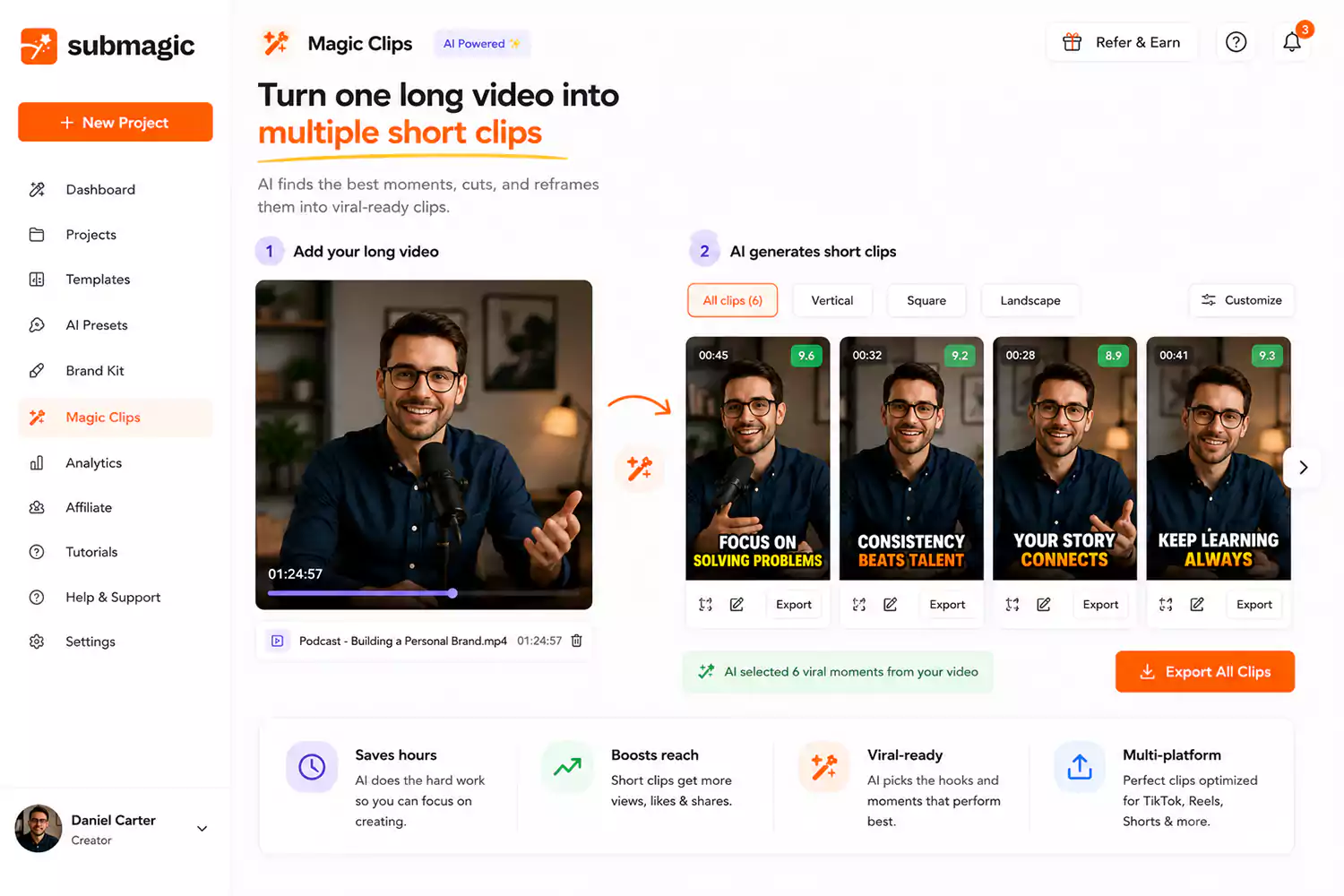
Feed it a long video — a podcast, webinar, or interview — and it pulls the best moments and turns them into several ready-to-post shorts. This one's a paid add-on, not part of any base plan.
Text-Based Trimming
Forget the timeline. Delete a sentence from the transcript, and Submagic cuts that matching video segment for you. No scrubbing back and forth.
B-Roll & Movie Clips
Reads your transcript, picks out keywords, and suggests matching stock footage. Pro and Business plans plug into Storyblocks too. You can still drop in your own clips or images.
Auto-Zoom
Zooms in on key moments on its own — a trick that keeps talking-head videos more engaging, without you setting a single keyframe.
AI Eye Contact Correction
Reading off a teleprompter? This fixes your gaze so it looks like you're staring right into the camera. Comes with Pro and up.
AI Video Translator
Goes past captions into full dubbing and translation, in 100+ languages. Record once in English, and get Spanish, French, or Portuguese versions without re-recording a thing.
AI Actors Studio
Builds videos with AI avatars, so you can publish without filming or hiring anyone to sit in front of a camera.
Sound Effects & Background Music
A one-click library of sound effects and music beds for atmosphere. Pro and above also get AI Clean Audio to strip out background noise.
Publishing & Scheduling
Set a date, pick your platforms, and Submagic posts straight to TikTok, YouTube, and Instagram from inside the editor. Pro plan and up.
Brand Kit & Custom Templates
Upload your fonts, colors, and logo once, and every caption stays on-brand automatically. Business plans also get a custom vocabulary dictionary for brand names and niche terms.
Workflow
From Raw Footage to Ready-to-Post in 5 Steps
Upload or paste a link
Drag in a video file, scan a QR code to send footage from your phone, paste a YouTube URL, or pull from Google Drive. Max file size sits around 3GB.
Pick your workflow
Go with Generate Captions for a quick subtitle pass, AI Auto Edit for the full automated treatment, or Magic Clips to turn one long video into several shorts.
Let the AI do the work
Submagic transcribes the audio, applies your caption template, cuts the silences, and — on supported plans — drops in B-roll and zooms on its own.
Fine-tune it
Edit captions like a text doc, swap styles instantly, move B-roll around, and switch any AI feature on or off from the AI Boost panel.
Export or publish
Export up to 4K depending on your plan, or schedule and publish straight to TikTok, YouTube, and Instagram without leaving the editor.
Upload
File, link, or QR scan
AI Processing
Captions + cuts + B-roll
Review
Edit like a document
Publish
Export or auto-schedule
Hands-On
Inside the Editor: What It's Actually Like to Use
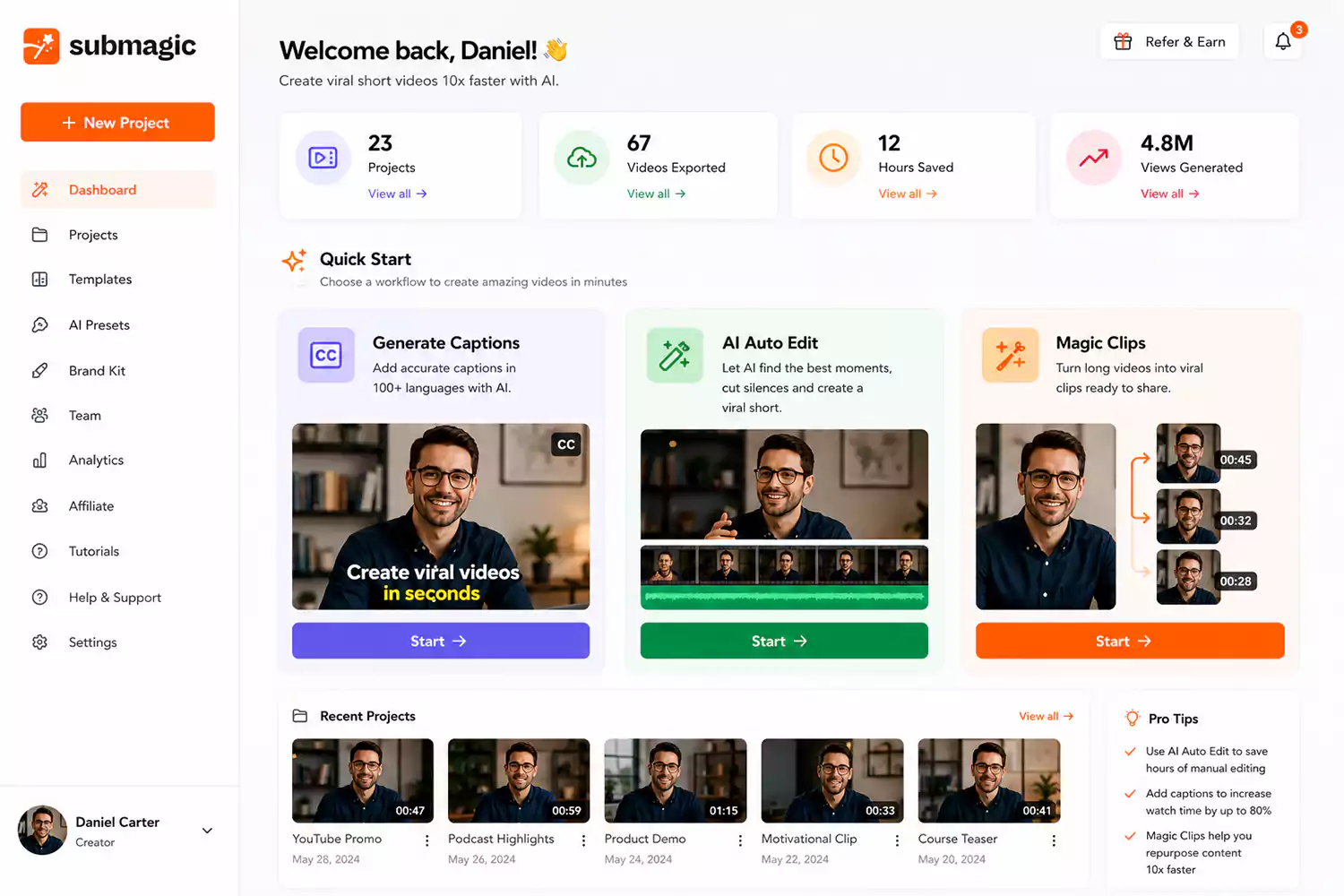
Everything sits one click away. The left sidebar holds Dashboard, Publishing, AI Thumbnails, Integrations, Brand Kits, and Presets. The main Quick Start screen puts the four core workflows front and center: Generate Captions, AI Auto Edit, Magic Clips, and Combine Videos.
The caption editor splits into two tabs. "Subtitle" lets you edit the transcript line by line. "Design" handles colors, emojis, font size, and animation. The AI Boost panel works like a control center — you can flip AI Captions, Remove Silences, Auto Zooms, and Auto B-rolls on or off one at a time instead of committing to an all-or-nothing edit.
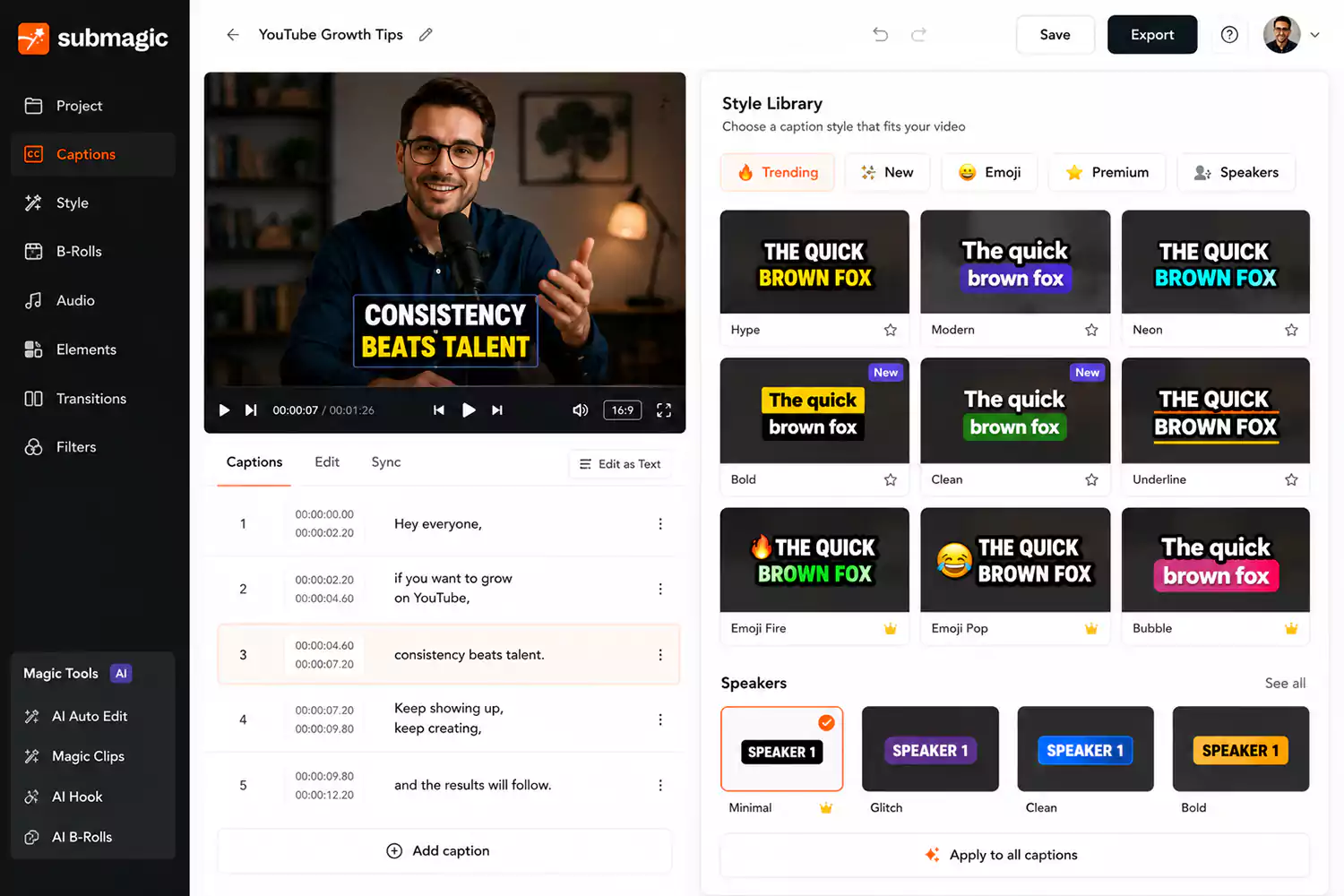
G2 reviewers say beginners pick it up fast, while power users still get plenty of room to customize captions. The main complaint? Exports sometimes slow down, and a few users blame server load during busy hours.
In Practice
Who's Actually Using Submagic (and Why)
🎙️ Podcast-to-shorts repurposing
Upload a podcast or interview, and Magic Clips pulls the best moments into several platform-ready shorts. Media outlet Sportskeeda used this exact workflow to scale past 2,500 videos a month.
📱 Daily TikTok/Reels posting
One G2 reviewer cut their editing time from two-to-three hours down to around 45 minutes per short. That adds up fast if you post five or more times a week.
🏢 Agency client management
Brand Kit and multi-seat workspaces keep every client's caption style, fonts, and logos consistent — no need to reconfigure settings for each new project.
🌍 Multilingual audience growth
Publish one English video, then use the AI Video Translator to create dubbed versions in Spanish, French, German, and dozens more — no re-recording needed.
Speed & Reliability
Performance: Is It Actually as Fast as They Claim?
Speed is the whole pitch here. You trade hours of manual editing for a pass measured in minutes. Max Productive tested this hands-on and got a fully captioned, trimmed, B-roll-enhanced short back in under five minutes using AI Auto Edit. Support gets good marks too — several G2 and Trustpilot reviewers name specific staff who fixed billing or export problems fast.
It's not perfect, though. Some G2 reviews mention exports getting stuck when server load spikes. And since Submagic runs entirely in your browser, there's no desktop or mobile app — a real drawback if you want to review or tweak a clip from your phone.
Figures combine a single G2 reviewer's self-reported time savings with Max Productive's hands-on AI Auto Edit test. Individual results vary with footage length and complexity.
The Core Feature
Caption Accuracy: How Good Is It Really?
Submagic claims 99% caption accuracy across 48 languages. Its own marketing compares that to Opus Clip's 95% and points out that CapCut and Captions.ai don't publish accuracy numbers at all. Take vendor-vs-vendor comparisons with a grain of salt since they come from Submagic's own page, but the 99% figure shows up consistently across the site.
Real-world tests back this up. TheBusinessDive tested it hands-on and measured accuracy "above 97%," with brand names causing most of the mistakes — something the Business plan's custom vocabulary dictionary fixes. ToolsForHumans adds a fair warning: accuracy drops with strong accents or noisy rooms, so build a little manual review into your process. Don't assume it away.
*Competitor figures as cited on Submagic's own marketing pages, not independently verified by this review. Treat as directional, not absolute.
If you record with a phone in a noisy room, a strong accent, or heavy crosstalk, expect to spend a few extra minutes correcting captions manually — no AI transcription tool, including this one, is immune to that.
Automation
Beyond Captions: The AI Tools Hiding in the Higher Tiers
Captions get all the attention, but Submagic packs a few more AI tools into its higher tiers. Worth knowing before you pick a plan:
Bars represent relative feature depth/availability across plan tiers as listed on Submagic's pricing page — not a performance benchmark.
Compatibility
Where Your Videos Actually End Up
Submagic is built for vertical, short-form video. It publishes directly to the three platforms creators care about most:
| Platform | Direct Publishing | Caption Style Fit | Notes |
|---|---|---|---|
| TikTok | Yes (Pro+) | Excellent | Trending/Hormozi-style templates designed for this format |
| Instagram Reels | Yes (Pro+) | Excellent | Same caption engine and templates as TikTok exports |
| YouTube Shorts | Yes (Pro+) | Excellent | Also usable for standard YouTube uploads with subtitles |
| YouTube (long-form) | No native scheduling | Good (via SRT export) | Export captions as SRT/VTT for long-form uploads |
| LinkedIn / Facebook | No | Good | Manual export and upload required |
Direct publishing and scheduling require a Pro plan or higher; lower tiers support export-then-upload.
Output Quality
Export Quality: What You're Actually Getting
| Plan | Max Resolution | Frame Rate | Watermark | Max Video Length |
|---|---|---|---|---|
| Free | Standard | — | Watermarked | 1 min 30 sec |
| Starter | 1080p | 30 FPS | None | 2 minutes |
| Pro | 1080p / 2K | 30 FPS | None | 5 minutes |
| Business + API | 1080p / 4K | 30 / 60 FPS | None | 30 minutes |
Subtitle files can also be exported separately in SRT, VTT, or TXT format for use in other editors like Premiere Pro or After Effects.
Cost
Submagic Pricing: What You'll Actually Pay
Submagic charges per seat, with a video quota attached — not a flat unlimited plan. Pay yearly and you save 41% versus paying month to month. All the numbers below come straight from Submagic's official pricing page.
Free
$0
No credit card required
- 3 videos / month
- 200MB & 1 min 30 sec max
- Submagic watermark
- Starter caption templates
- Free stock media
Starter
$12/mo
billed annually ($19/mo billed monthly)
- 15 videos / month, up to 2 min each
- No watermark
- 3 AI credits / month
- 1080p, 30 FPS export
- API: 10 min / month
Pro
$23/mo
billed annually ($39/mo billed monthly)
- 40 videos / month, up to 5 min each
- 6 AI credits / month
- Brand Kit + 3 custom templates
- AI remove silences, bad takes, clean audio
- Direct publish to TikTok/YT/IG
Business + API
$41/mo
billed annually ($69/mo billed monthly)
- Up to 100 videos / month, 30 min each
- 4K, 60 FPS export
- 15 AI credits / month
- Custom vocabulary dictionary
- API: 100 min / month, priority support
Long-to-short clip extraction isn't bundled into any plan by default. It's an add-on costing +$12/member/month (annual) or +$19/member/month (monthly) on top of whichever tier you choose, covering clips from 10 long videos per month.
Full Plan Comparison
| Feature | Starter | Pro | Business + API |
|---|---|---|---|
| Videos / month | 15 | 40 | Up to 100 |
| Max video length | 2 min | 5 min | 30 min |
| AI Credits / month | 3 | 6 | 15 |
| Caption templates | Standard | Premium | Premium |
| B-roll | Standard | + Movie clips | + Movie clips |
| Export quality | 1080p | 1080p, 2K | 1080p, 4K |
| Watermark | None | None | None |
| Brand Kit / custom fonts | — | Yes | Yes |
| Custom vocabulary | — | — | Yes |
| AI hook titles / remove silences / clean audio | — | Yes | Yes |
| API minutes / month | 10 | 10 | 100 |
| Priority support & rendering | — | — | Yes |
Pulled directly from submagic.co/pricing. Additional API minutes are available as credit packs starting at 500 min for $75/month.
The Honest Take
The Honest Pros and Cons
✅ Pros
- Genuinely fast — reviewers cut editing time from hours down to under an hour per video
- One click for AI Auto Edit handles captions, silence removal, and B-roll together
- Strong caption template library (35+ styles) with real customization
- Text-based trimming means you never touch a traditional timeline
- Fast, responsive support — reviewers name specific staff by name on G2 and Trustpilot
- 4.7/5 on G2 from 84 verified reviews, and 4.9/5 on Google
- Bootstrapped company with clear, public pricing
⚠️ Cons
- Thin free plan: 3 videos a month, watermarked, capped at 1 min 30 sec
- No mobile or desktop app — browser-only, and some reviewers call that a real pain
- Magic Clips (long-to-short) costs extra — it's not part of any base plan
- Per-seat, per-video pricing means costs climb fast for bigger or multi-seat teams
- Accuracy drops with accents, noise, or rough audio — plan on some manual review
- A few G2 reviewers report export delays when server load spikes
- Not built for color correction or multi-track audio mixing
vs. The Competition
Submagic vs. Everyone Else: How It Really Stacks Up
No single tool wins every category. Here's how Submagic stacks up against the editors creators ask about most.
| Tool | Entry Price | Best For | AI Auto-Captions | Auto B-Roll | Mobile App |
|---|---|---|---|---|---|
| Submagic | $12–$41/mo (annual) | Fast animated captions + automated short-form editing | Yes, 99% claimed | Yes | No (browser only) |
| CapCut | Free; Pro tier varies by region | Free, manual, mobile-first editing with effects/templates | Yes (manual review needed) | No automation | Yes, iOS/Android |
| VEED | ~$9–$12/mo (Lite, annual) | Browser editor with AI avatars, brand kits, team features | Yes | Limited | Web only |
| Descript | ~$16–$24/mo (Hobbyist) | Podcasts, interviews, transcript-based editing | Yes | No | No native app |
| Opus Clip | ~$15–$19/mo (Starter) | Turning long videos into multiple short clips | Yes | No | Web only |
| Captions | Freemium, mobile-first | Mobile caption styling and AI dubbing | Yes | No | Yes, native mobile app |
| Adobe Premiere Pro | ~$22.99/mo (annual) | Professional, frame-accurate manual editing | Built-in speech-to-text | Manual | Desktop only (Mac/Win) |
| Final Cut Pro | $299.99 one-time (Mac) | Mac-based professional editing, fast rendering | Limited | Manual | Mac/iPad only |
| Canva | ~$13/mo (Pro) | Teams already using Canva for graphics, simple video add-on | Basic | No | Yes |
Competitor pricing reflects publicly listed entry-level rates as of mid-2026 and can change; always confirm on the vendor's own pricing page before subscribing.
Here's the simple way to think about it: CapCut wins on price and mobile freedom if you don't mind doing captions and cuts by hand. Descript and Premiere Pro win for long-form, talk-heavy projects that need frame-level precision. Opus Clip only does one thing — turning long videos into short clips. Submagic sits in the middle: less manual control than Premiere, way more automation than CapCut, and a caption engine that keeps landing at the top of the category.
Editorial assessment derived from G2/Trustpilot review themes and hands-on third-party testing — strongest on captions and automation, weakest on mobile access and frame-level manual control.
Fit Check
Is Submagic Actually Right for You?
✅ Good fit
- 👤 Solo creators posting 4+ TikToks, Reels, or Shorts a month who want captions handled for them
- 🏢 Agencies and social media managers juggling caption styles across several clients
- 🎙️ Podcasters who want to turn episodes into shorts with Magic Clips
- 🌍 Creators reaching global audiences who need captions or dubbing in more than one language
- 📈 Marketing teams that need on-brand captioned ads at scale
🚫 Not the right fit
- 🎬 Pro editors who need color grading, multi-track audio, or frame-accurate cuts
- 📱 Creators who edit only on their phone and want a real mobile app
- 🎥 Long-form YouTube channels — Descript's transcript-based editing fits better here
- 💸 Anyone on a tight budget who's happy doing captions by hand in CapCut for free
- 📊 Teams that need heavier collaboration tools than basic multi-seat workspaces offer
Our Take
The Final Verdict
Here's the case for Submagic, in plain terms: if you make short-form video on a regular schedule and captioning eats up your time, this tool pays for itself within a month or two. That's the main reason to buy it. The caption engine is accurate, fast, and honestly fun to customize, and AI Auto Edit cuts out most of the tedious manual trimming that eats into your week. We checked this against Submagic's official feature list and its verified G2 rating (4.7/5, 84 reviews).
Where it falls short: no mobile app, a thin free plan, and per-seat pricing that takes a bit of math before you land on the right tier — especially once Magic Clips enters the picture. It's not trying to be Premiere Pro, so don't judge it like one.
You publish short-form video weekly, want captions and basic editing automated end-to-end, and you're comfortable working entirely in a browser.
Questions & Answers
Your Submagic Questions, Answered
Submagic is a browser-based AI video editor focused on short-form content. You upload a video or paste a link, and it automatically generates animated captions, removes silences, adds B-roll, and can turn long videos into multiple short clips with its Magic Clips tool.
Yes. The free plan allows up to 3 videos a month, capped at 200MB and 1 minute 30 seconds each, with a watermark on every export. Paid plans remove the watermark and raise the video count and length limits.
Submagic advertises 99% caption accuracy. Independent hands-on testing puts real-world accuracy above 97% under good recording conditions, though strong accents, background noise, or niche vocabulary typically need a manual pass.
Submagic generates captions natively in 48 languages. For full dubbing rather than just text captions, the AI Video Translator supports over 100 languages.
No. The free plan always exports with a Submagic watermark. You need at least the Starter plan ($12/month billed annually) to export watermark-free.
Starter covers 15 videos a month up to 2 minutes each with standard templates. Pro raises that to 40 videos at up to 5 minutes, with premium templates, Brand Kit, and direct publishing. Business+API supports up to 100 videos at up to 30 minutes, 4K exports, custom vocabulary, and a larger API allowance.
Magic Clips automatically turns long-form video, like a podcast or webinar, into multiple short clips. It is not bundled into any plan by default — it's a paid add-on costing $12 to $19 per member per month depending on billing cycle.
Yes, direct publishing and scheduling to TikTok, YouTube, and Instagram is available from the Pro plan upward, right inside the editor.
No. Submagic runs entirely in the browser, with no dedicated iOS, Android, or desktop application. You can upload footage from your phone by scanning a QR code on the upload screen, but editing happens on desktop.
Maximum length depends on your plan: 2 minutes on Starter, 5 minutes on Pro, and 30 minutes on Business+API. Reported maximum upload file size is 3GB.
Yes. API access comes with 10 minutes a month on Starter and Pro, and 100 minutes a month on Business+API. Additional API minutes are sold in credit packs starting at 500 minutes for $75/month.
CapCut is free and gives you full manual control with templates and effects, while Submagic automates captioning, silence removal, and B-roll into one pass. If you want speed and automation, Submagic; if you want free and hands-on, CapCut.
Submagic can process long source files through Magic Clips, but its editor and caption styles are built around short-form vertical video. For pure long-form, transcript-based editing, Descript is generally the stronger fit.
Yes. Paid plans support multiple seats per workspace, and Business adds shared brand assets, custom templates, a custom vocabulary, and priority support built for agencies managing several clients.
Yes, subscriptions can be cancelled anytime from account billing settings, with access continuing until the end of the current billing cycle. Refunds follow Submagic's published Terms of Service — we did not find an explicit blanket money-back guarantee advertised, so confirm current refund terms before purchasing if that matters to you.
Submagic was founded in early 2023 by David Zitoun and co-founder Tsi-fei Chan in Paris, France. It's a bootstrapped, self-funded company that grew past $8 million in annual recurring revenue without raising venture capital.
You can drag and drop video files, paste a YouTube link, scan a QR code to send footage from your phone, or import directly from Google Drive.
Start with Submagic's free plan — 3 videos a month, no credit card required — and upgrade only once you know it fits your workflow.
Start Creating Better Videos →